
Video content is everywhere today—from social media reels to YouTube channels and professional marketing campaigns. But creating a great video isn’t just about recording footage—it’s about how you edit it. Good editing can turn ordinary clips into something engaging, emotional, and visually impressive.
The best part? You don’t need prior experience to start editing videos like a pro. With the right approach, tools, and a bit of creativity, anyone can learn video editing quickly. This guide will walk you through everything from basic techniques to advanced tips in a simple, easy-to-understand way.
Understanding the Basics of Video Editing
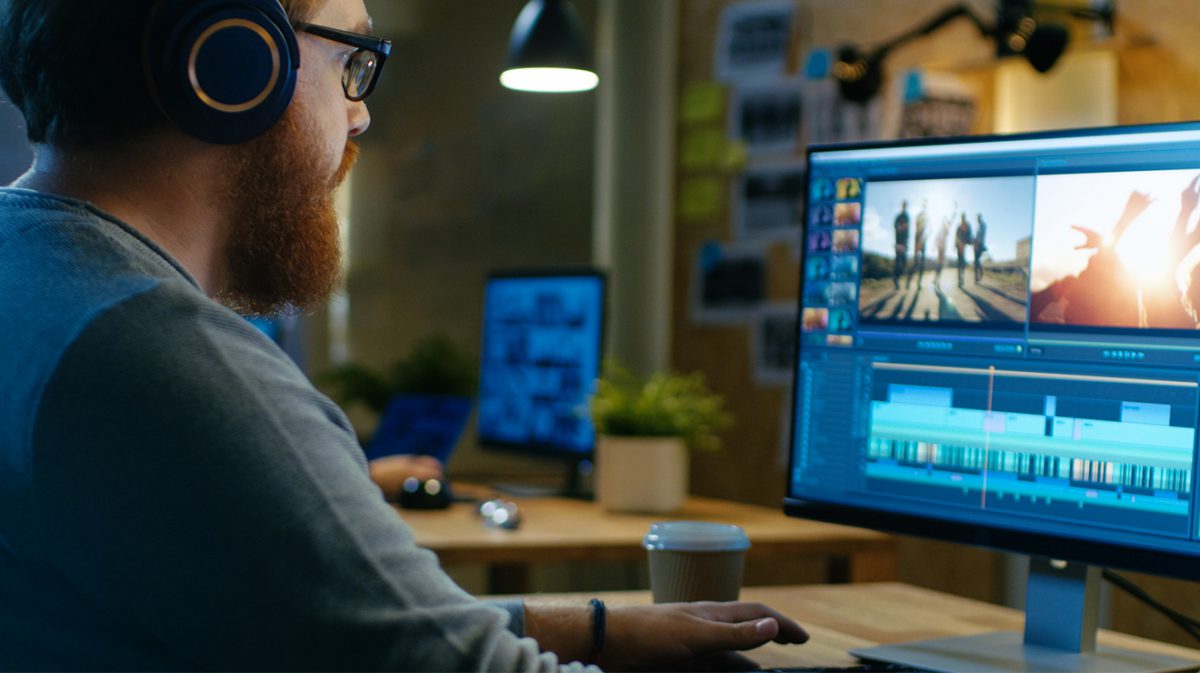
Before diving into advanced skills, it’s important to understand what video editing actually involves. At its core, video editing is the process of arranging video clips, adding effects, adjusting audio, and creating a final polished story.
Key Elements of Video Editing
- Cutting and trimming: Removing unwanted parts
- Transitions: Smoothly connecting clips
- Audio editing: Balancing sound and music
- Text and titles: Adding context and style
- Color correction: Enhancing visual quality
Mastering these basics is the first step toward professional-level editing.
Choosing the Right Video Editing Tools
The tool you use can make your learning process easier and faster. Here are some popular options:
- Adobe Premiere Pro – Professional-level editing with powerful features
- Final Cut Pro – Great for Mac users and fast performance
- DaVinci Resolve – Excellent for both editing and advanced color grading
- CapCut – Beginner-friendly and perfect for social media content
Start with a tool that matches your comfort level, and upgrade as your skills improve.
Beginner-Level Editing Techniques

If you're new to video editing, focus on simple steps that make a big impact.
1. Trim and Organize Clips
Remove unnecessary footage and keep only the best parts. This makes your video more engaging and concise.
2. Keep It Simple
Avoid adding too many effects or transitions. Clean and simple edits look more professional.
3. Add Basic Transitions
Use simple transitions like cuts and fades instead of flashy effects.
4. Use Background Music
Adding music can enhance mood and make your video more appealing.
Intermediate Skills to Improve Your Editing
Once you’re comfortable with the basics, it’s time to level up.
1. Work on Timing and Flow
Good editing is all about timing. Make sure your cuts match the rhythm of your content or music.
2. Add Text and Captions
Captions improve accessibility and keep viewers engaged, especially on social media.
3. Improve Audio Quality
Clear audio is just as important as visuals. Reduce noise and balance sound levels.
4. Basic Color Correction
Adjust brightness, contrast, and color tones to make your footage look more polished.
Advanced Techniques for Pro-Level Editing
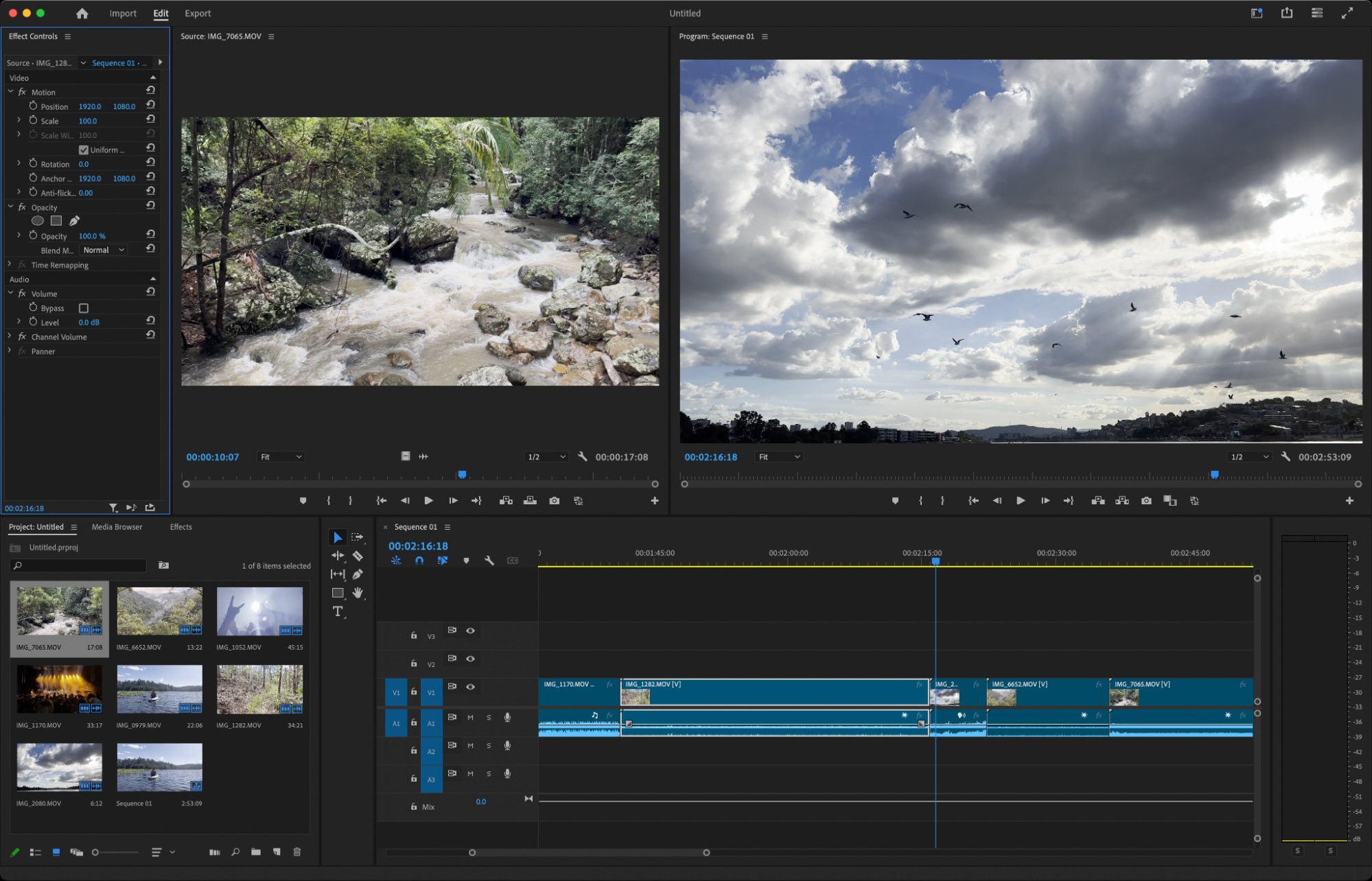
Now let’s move toward professional editing techniques.
1. Color Grading
Go beyond basic correction and create a cinematic look by adjusting tones and colors.
2. Motion Graphics
Add animated text or elements to make your videos more dynamic.
3. Multi-Camera Editing
Sync footage from multiple cameras for a more professional production style.
4. Storytelling Through Editing
Focus on how your video flows emotionally. Arrange clips to create a strong narrative.
Common Mistakes to Avoid
Avoiding these mistakes can instantly improve your editing:
- Overusing transitions and effects
- Ignoring audio quality
- Making videos too long
- Poor clip organization
- Inconsistent color tones
Always aim for clarity and simplicity.
Tips to Edit Videos Like a Pro

- Plan your video before editing
- Keep your audience in mind
- Use shortcuts to speed up your workflow
- Watch professional videos for inspiration
- Practice regularly with different styles
Consistency is key to mastering video editing.
Building Your Unique Editing Style
As you gain experience, you’ll develop your own editing style. This could be fast-paced cuts, cinematic visuals, or minimalistic storytelling.
Experiment with:
- Different transitions
- Unique color tones
- Music styles
- Editing rhythms
Your style will help your videos stand out.
Why Video Editing Matters
Video editing is not just a technical skill—it’s a creative one. It allows you to tell stories, connect with audiences, and express ideas visually.
Whether you're creating content for fun, building a brand, or starting a career, strong editing skills can open many opportunities.
FAQs
1. Can I learn video editing without experience?
Yes, video editing is beginner-friendly, and many tools make it easy to start without prior knowledge.
2. Which software is best for beginners?
CapCut and DaVinci Resolve are great options for beginners due to their simple interfaces and powerful features.
3. How long does it take to learn video editing?
With regular practice, you can learn the basics in a few weeks and improve significantly within a few months.
4. Do I need a powerful computer for video editing?
Basic editing can be done on most computers, but advanced editing works better on a more powerful system.
5. What is the most important part of video editing?
Storytelling and timing are the most important aspects of good video editing.
6. How can I improve my editing skills quickly?
Practice regularly, learn from tutorials, and analyze professional videos to understand editing techniques.
Who should use Digital Tools
Video Editing Made Easy: Go from Beginner to Pro Fast is built for readers who want a faster way to finish everyday web tasks. The main goal is shorter workflows, clearer outputs, and reusable tool habits, so the guide focuses on practical choices instead of broad theory.
Use it when you need one of these outcomes:
- testing a task before choosing a heavier app
- saving time on a repeated browser workflow
- combining a guide with a related AltFTool utility
How to get a better result
- Read the core use case and decide what output you need.
- Open the related AltFTool utility and test it with a small sample.
- Review the result, adjust settings, and repeat only if needed.
- Continue with related tools or guides for the next step in the workflow.
Start small, check the first output, and only then repeat the workflow with the full file, text, media, or game session. That gives you a quick quality check before you spend more time.
Quality checks before you trust the output
- the input is clean before running the tool
- the output matches the format you need
- private details are removed before sharing or downloading
Do not overcomplicate a simple task. Start with the smallest sample that proves the workflow, then scale up once the output looks right.
Continue your workflow
If you want to try the workflow now, open the related AltFTool tool area. For more reading, continue through the Digital Tools archive or the AltFTool tools directory.
This creates a cleaner path from explanation to action: read the guide, test the tool, compare the output, and move into the next related AltFTool resource only when it helps the task.
Reader questions
Quick answers
What is Video Editing Made Easy: Go from Beginner to Pro Fast about?
Video content is everywhere today—from social media reels to YouTube channels and professional marketing campaigns. But creating a great video isn’t just about
When should I use Digital Tools?
Use Digital Tools when you need testing a task before choosing a heavier app or saving time on a repeated browser workflow. It is best for shorter workflows, clearer outputs, and reusable tool habits.
How do I get better results from Digital Tools?
Start with a small sample, then check that the input is clean before running the tool and the output matches the format you need. Review the output before using it in a final workflow.
Where can I find more Digital Tools guides?
Use the AltFTool blog archive, AltFTool tools directory, and related links on this page to explore more Digital Tools tutorials, tool workflows, and practical recommendations.
Sources and review notes
References used to check facts, freshness, and reader-safe recommendations in this guide.
Reviewed against AltFTool editorial guidance, related site archives, and linked tool pages for freshness and reader usefulness.
- 1AltFTool Digital Tools archive
AltFTool
- 2AltFTool tools directory
AltFTool
Discussion
0 comments
No comments yet
Discussion will appear here once it loads.