
In the ever-evolving world of digital content, video has become the most dominant form of storytelling. From YouTube creators and Instagram influencers to filmmakers and marketers, everyone relies on high-quality video content to engage their audience. However, capturing footage is only half the journey—the real magic happens in the editing process.
Video editing transforms raw clips into compelling stories by enhancing visuals, refining audio, adding effects, and creating seamless transitions. With advancements in technology, 2026 has introduced a wide range of powerful video editing tools that cater to creators of all levels. Whether you are a beginner looking for simplicity or a professional seeking advanced control, choosing the right software can make all the difference.
This guide explores some of the best and most powerful video editing tools for creators in 2026, detailing their features, strengths, and ideal use cases.
Why Video Editing Tools Are Essential for Creators
Before diving into specific tools, it's important to understand why video editing software plays such a crucial role in content creation. A well-edited video not only looks professional but also improves storytelling and viewer engagement.
Editing helps creators:
- Remove unnecessary footage and mistakes
- Enhance video quality with color correction and grading
- Add music, sound effects, and voiceovers
- Include transitions, animations, and visual effects
- Maintain consistency in style and branding
Without proper editing, even the best footage can fail to capture attention. That’s why investing time in learning the right tools is essential for growth in today’s competitive content landscape.
1. Adobe Premiere Pro
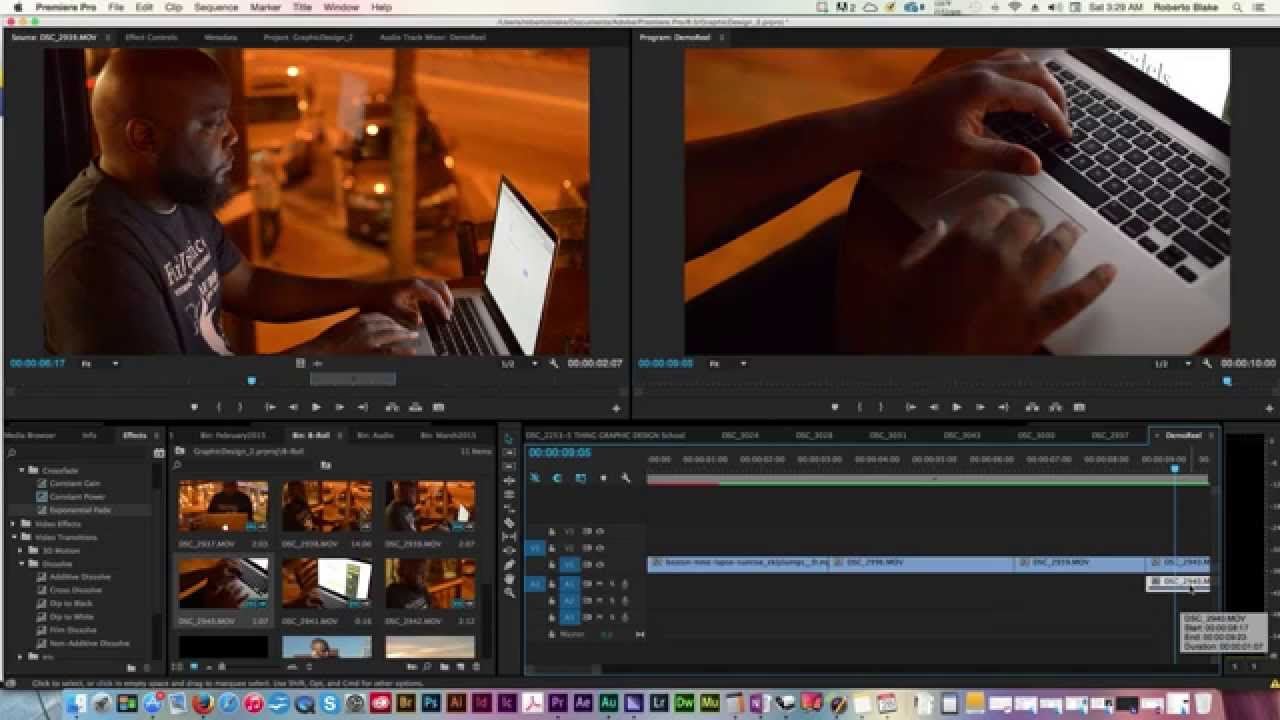
Adobe Premiere Pro continues to dominate the professional video editing space in 2026. It is widely used by filmmakers, YouTubers, and production studios for its versatility and powerful features.
Key Features
Advanced Timeline Editing
Premiere Pro offers a flexible timeline that allows you to work with multiple layers of video, audio, and effects. This makes it easy to create complex edits.
AI-Powered Tools (Adobe Sensei)
Features like auto-reframe, scene edit detection, and speech-to-text captions save time and improve workflow efficiency.
Seamless Integration with Adobe Ecosystem
You can easily connect with tools like After Effects, Photoshop, and Audition for enhanced editing capabilities.
Color Grading with Lumetri Panel
The Lumetri Color panel provides professional-grade color correction and cinematic grading options.
Extensive Format Support
Premiere Pro supports almost all video formats, making it highly versatile.
Best For
- Professional editors
- Filmmakers
- YouTube creators with advanced needs
Why It Stands Out
Its combination of flexibility, power, and integration makes it one of the most reliable tools for high-quality video production.
2. Final Cut Pro
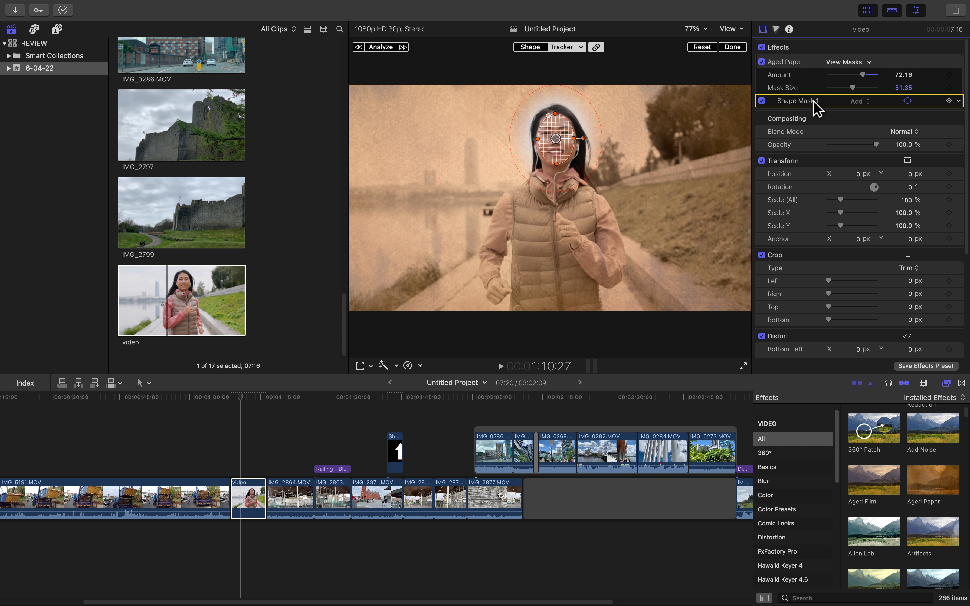
Final Cut Pro is Apple’s flagship video editing software, known for its speed and optimized performance on macOS devices.
Key Features
Magnetic Timeline
This unique feature allows clips to snap into place automatically, reducing editing errors and speeding up workflow.
Optimized for Apple Silicon
Final Cut Pro runs incredibly smoothly on Mac devices, especially with M-series chips, delivering fast rendering and playback.
Advanced Color Grading
It includes powerful color wheels, HDR support, and advanced grading tools for cinematic results.
360-Degree Video Editing
Supports immersive video editing for VR content creators.
Built-in Effects and Transitions
Comes with a wide range of high-quality effects and transitions.
Best For
- Mac users
- Professional creators
- Filmmakers and editors
Why It Stands Out
Its speed and seamless performance on Apple devices make it a favorite among professionals.
3. DaVinci Resolve
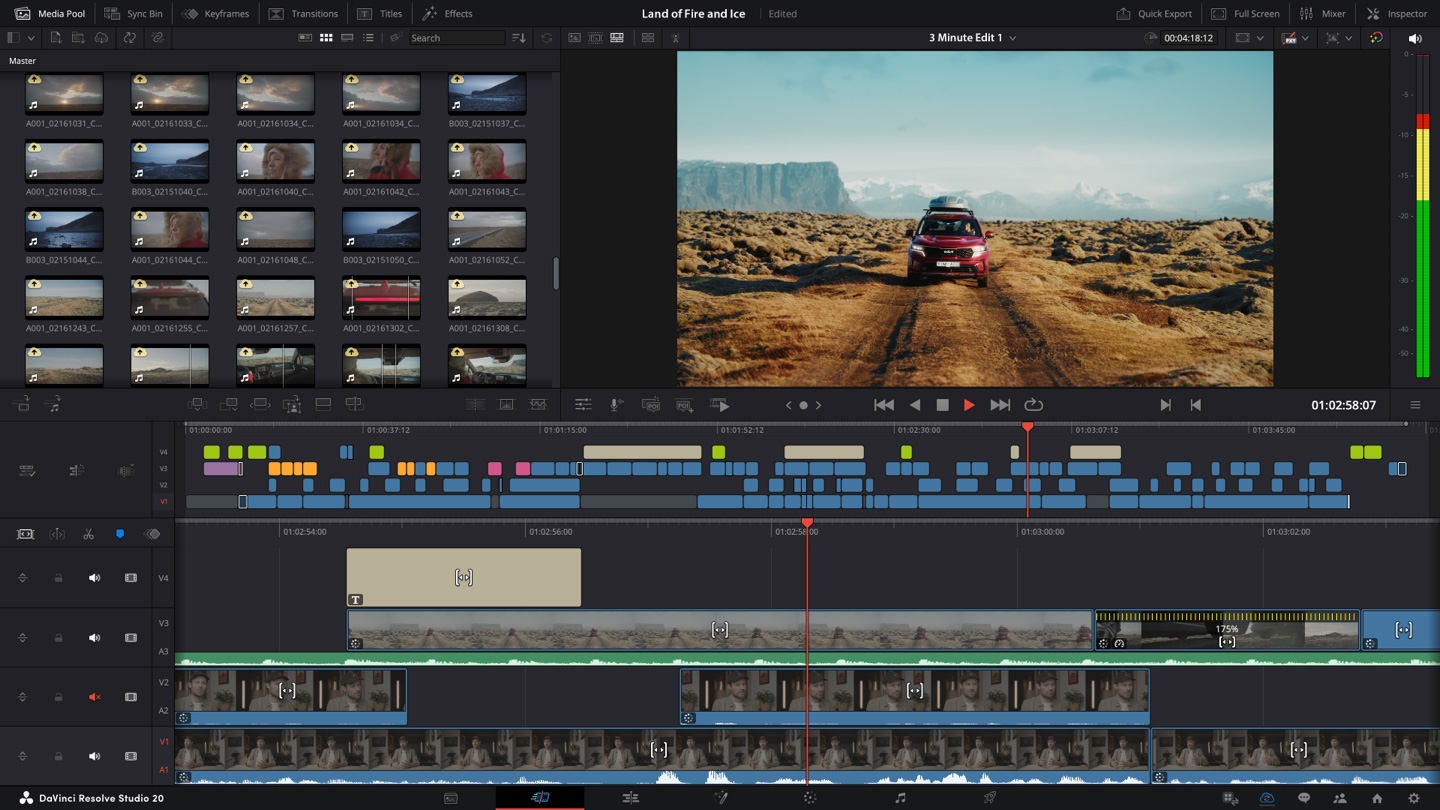
DaVinci Resolve has gained immense popularity for offering a complete editing suite, including professional color grading, audio editing, and visual effects—all in one platform.
Key Features
Industry-Leading Color Grading
DaVinci Resolve is widely recognized for its advanced color correction tools used in Hollywood productions.
All-in-One Solution
Combines editing, color grading, visual effects, and audio post-production in a single software.
Fusion Visual Effects
Includes powerful VFX tools for motion graphics and compositing.
Fairlight Audio Tools
Provides professional audio editing and mixing capabilities.
Free Version Available
Offers a highly capable free version, making it accessible to beginners.
Best For
- Professional editors
- Colorists
- Advanced creators
Why It Stands Out
It delivers high-end professional features without requiring multiple software tools.
4. CapCut
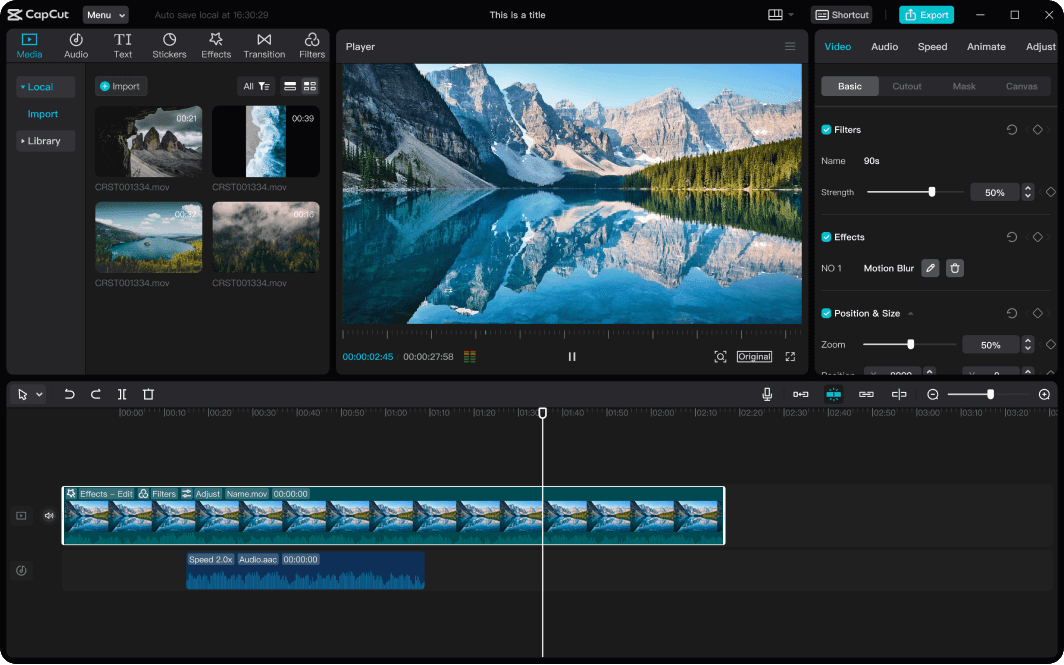
CapCut has become one of the most popular mobile and desktop editing tools, especially among short-form content creators.
Key Features
AI Editing Tools
Includes auto captions, background removal, and smart cut features powered by AI.
Ready-to-Use Templates
Offers trending templates for quick editing, perfect for TikTok and Instagram Reels.
Music and Effects Library
Provides a vast collection of royalty-free music and sound effects.
User-Friendly Interface
Easy to use, making it ideal for beginners.
Cloud-Based Editing
Allows you to edit projects across devices.
Best For
- Social media creators
- Beginners
- Short-form video content
Why It Stands Out
Its simplicity combined with powerful AI tools makes it perfect for fast and engaging content creation.
5. Filmora
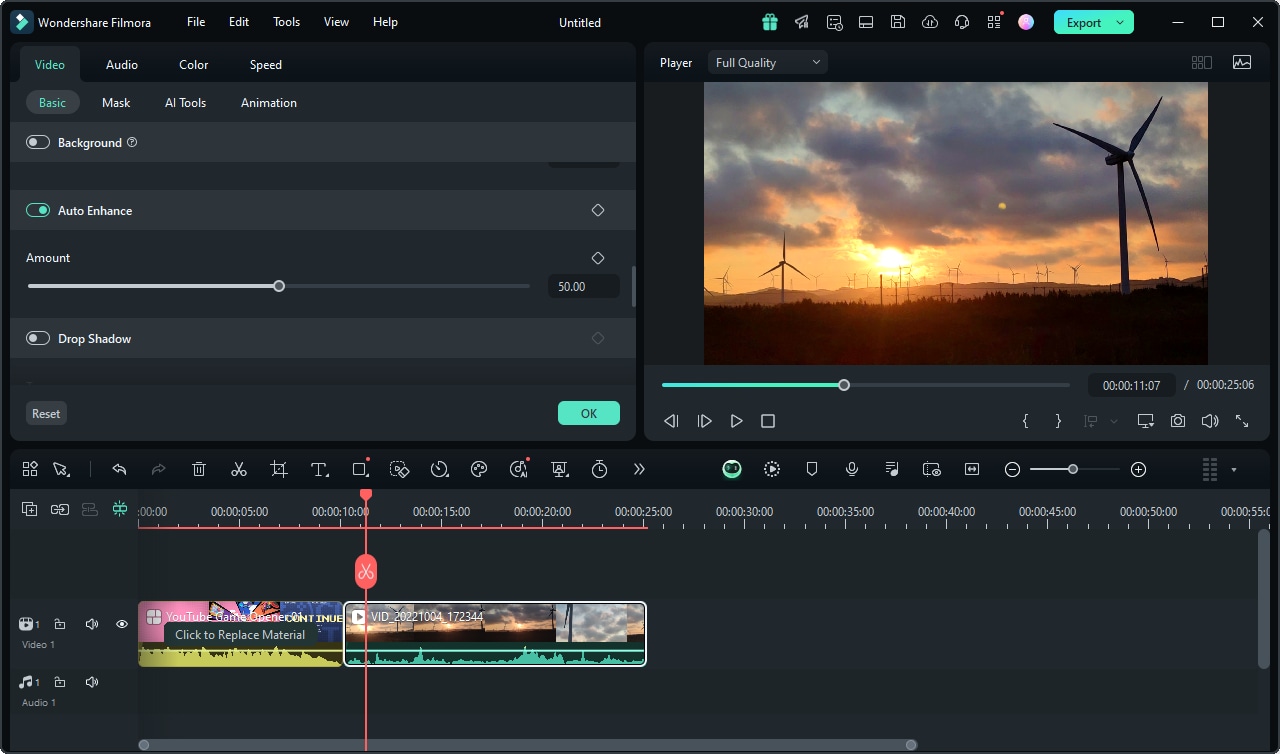
Filmora is known for balancing simplicity and powerful features, making it a great choice for beginners and intermediate creators.
Key Features
Drag-and-Drop Editing
Simple interface that allows quick editing without a steep learning curve.
Built-in Effects and Transitions
Offers hundreds of effects, filters, and transitions.
AI Features
Includes AI portrait, motion tracking, and audio synchronization.
Stock Media Library
Access to royalty-free videos, images, and music.
Cross-Platform Support
Available on Windows and macOS.
Best For
- Beginners and intermediate users
- YouTubers
- Content creators
Why It Stands Out
Filmora provides a perfect balance between ease of use and advanced functionality.
6. Adobe After Effects

While not a traditional video editor, Adobe After Effects is essential for creators who want to add advanced motion graphics and visual effects.
Key Features
Motion Graphics and Animation
Create stunning animations, titles, and visual effects.
Compositing Tools
Combine multiple elements into a single scene seamlessly.
Plugin Ecosystem
Supports a wide range of plugins for enhanced capabilities.
Integration with Premiere Pro
Works perfectly with Premiere Pro for a smooth workflow.
Advanced Keyframe Control
Allows precise animation adjustments.
Best For
- Motion designers
- Advanced creators
- Filmmakers
Why It Stands Out
It adds a cinematic and professional touch to videos through advanced visual effects.
How to Choose the Right Video Editing Tool
Choosing the right video editing software depends on your goals, experience level, and budget.
If you are a beginner, tools like CapCut and Filmora are excellent starting points due to their ease of use. They allow you to create engaging content quickly without needing technical expertise.
For intermediate creators, DaVinci Resolve offers a powerful upgrade with advanced features while still being accessible.
Professional creators and filmmakers often rely on Adobe Premiere Pro or Final Cut Pro for their flexibility and high-end capabilities. These tools provide complete control over every aspect of editing.
If your focus is on animation and visual effects, Adobe After Effects is the perfect companion to your editing software.
Tips to Create Professional-Quality Videos
Even with the best tools, your editing approach plays a crucial role in the final output.
Focus on Storytelling
A great video tells a story. Organize your clips in a way that keeps viewers engaged from start to finish.
Use Clean Cuts and Transitions
Avoid overusing flashy transitions. Simple cuts often look more professional.
Pay Attention to Audio
Clear audio is just as important as visuals. Use background music and sound effects wisely.
Color Correction Matters
Adjust brightness, contrast, and color balance to maintain consistency across your video.
Keep It Consistent
Maintain a consistent style, tone, and branding in all your videos.
Common Mistakes to Avoid
Many creators make mistakes that reduce the quality of their videos.
- Overusing effects and transitions
- Ignoring audio quality
- Poor color grading
- Using low-resolution footage
- Lack of proper pacing
Avoiding these mistakes can significantly improve your content quality.
FAQ
1. Which is the best video editing software for beginners in 2026?
CapCut and Filmora are great for beginners due to their simple interface and ready-to-use features.
2. Is DaVinci Resolve really free?
Yes, DaVinci Resolve offers a free version with powerful features suitable for most editing needs.
3. What do professionals use for video editing?
Professionals commonly use Adobe Premiere Pro, Final Cut Pro, and DaVinci Resolve.
4. Can I edit videos on my phone professionally?
Yes, apps like CapCut allow you to create high-quality videos directly on your smartphone.
5. Do I need a powerful computer for video editing?
For basic editing, a standard computer works fine. However, professional editing requires a powerful system with good RAM and GPU support.
Who should use Digital Tools
Best Powerful Video Editing Tools for Creators 2026 is built for readers who want a faster way to finish everyday web tasks. The main goal is shorter workflows, clearer outputs, and reusable tool habits, so the guide focuses on practical choices instead of broad theory.
Use it when you need one of these outcomes:
- testing a task before choosing a heavier app
- saving time on a repeated browser workflow
- combining a guide with a related AltFTool utility
How to get a better result
- Read the core use case and decide what output you need.
- Open the related AltFTool utility and test it with a small sample.
- Review the result, adjust settings, and repeat only if needed.
- Continue with related tools or guides for the next step in the workflow.
Start small, check the first output, and only then repeat the workflow with the full file, text, media, or game session. That gives you a quick quality check before you spend more time.
Quality checks before you trust the output
- the input is clean before running the tool
- the output matches the format you need
- private details are removed before sharing or downloading
Do not overcomplicate a simple task. Start with the smallest sample that proves the workflow, then scale up once the output looks right.
Continue your workflow
If you want to try the workflow now, open the related AltFTool tool area. For more reading, continue through the Digital Tools archive or the AltFTool tools directory.
This creates a cleaner path from explanation to action: read the guide, test the tool, compare the output, and move into the next related AltFTool resource only when it helps the task.
Reader questions
Quick answers
What is Best Powerful Video Editing Tools for Creators 2026 about?
In the ever-evolving world of digital content, video has become the most dominant form of storytelling. From YouTube creators and Instagram influencers to filmm
When should I use Digital Tools?
Use Digital Tools when you need testing a task before choosing a heavier app or saving time on a repeated browser workflow. It is best for shorter workflows, clearer outputs, and reusable tool habits.
How do I get better results from Digital Tools?
Start with a small sample, then check that the input is clean before running the tool and the output matches the format you need. Review the output before using it in a final workflow.
Where can I find more Digital Tools guides?
Use the AltFTool blog archive, AltFTool tools directory, and related links on this page to explore more Digital Tools tutorials, tool workflows, and practical recommendations.
Sources and review notes
References used to check facts, freshness, and reader-safe recommendations in this guide.
Reviewed against AltFTool editorial guidance, related site archives, and linked tool pages for freshness and reader usefulness.
- 1AltFTool Digital Tools archive
AltFTool
- 2AltFTool tools directory
AltFTool
Discussion
0 comments
No comments yet
Discussion will appear here once it loads.