
In today’s fast-moving digital world, visuals are everything. Whether you’re scrolling through social media, browsing a website, exploring the latest internet plans, or checking out new smart gadgets, it’s the graphics that grab your attention first. For businesses, creators, and even students, creating eye-catching visuals is no longer optional—it’s essential.
The best part? You don’t need to be a professional designer anymore. With modern tools and AI-powered platforms, anyone can create stunning graphics quickly and easily. What once required advanced skills and expensive software can now be done in minutes with the right approach.
This guide will help you understand how to create high-quality graphics effortlessly, along with the best tools you can use in 2026.
Why Creating Stunning Graphics Matters
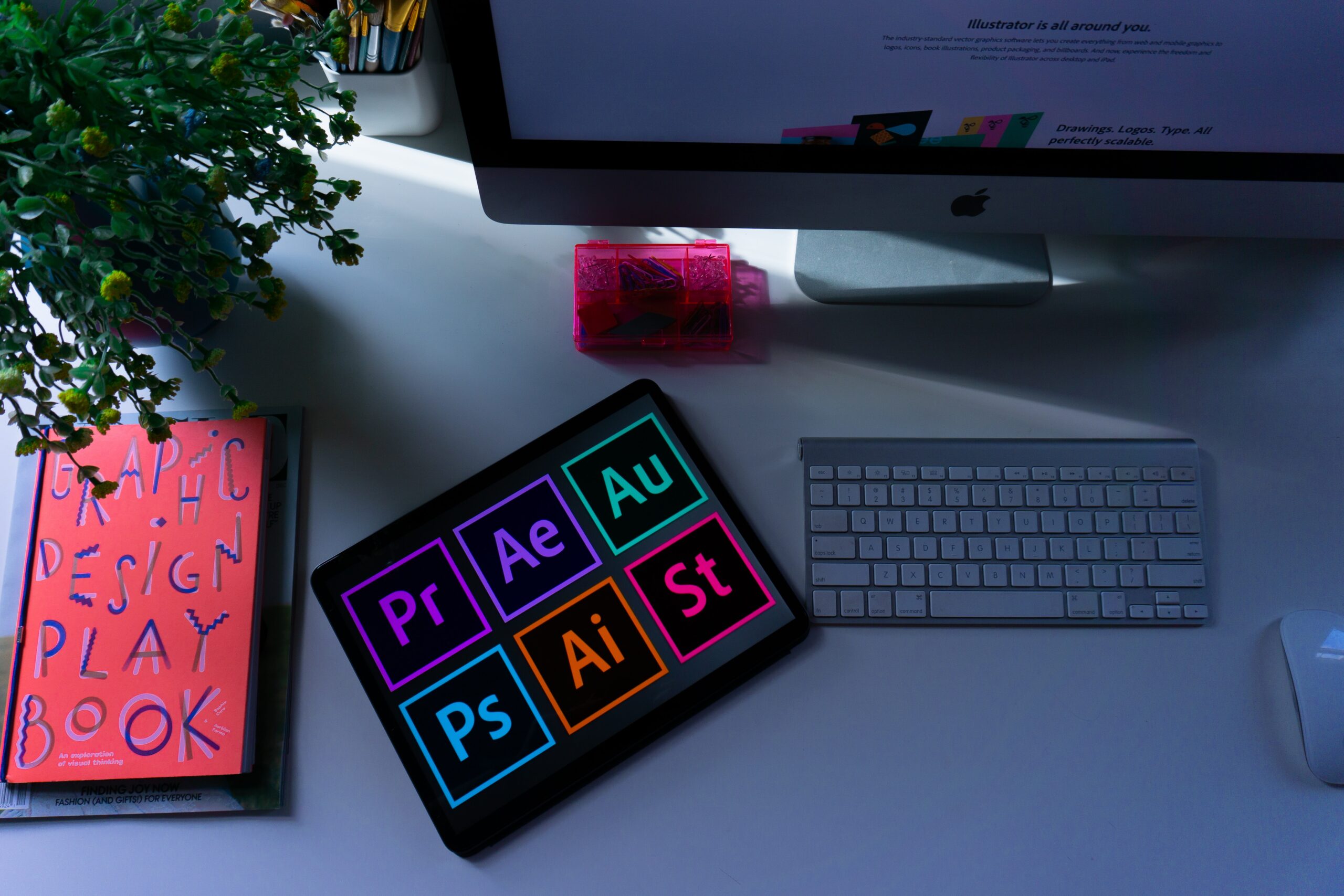
Good design is not just about making things look pretty—it’s about communication. A well-designed graphic can tell a story, promote a product, or build a strong brand identity.
Here’s why graphics matter more than ever:
- They increase engagement on social media
- They help build trust and professionalism
- They improve marketing results and conversions
- They make content easier to understand
In short, better visuals = better results.
Best Tools to Create Stunning Graphics Easily
Choosing the right tool is the first step. Here are the top platforms that make design simple and effective:
Canva
Canva is the most beginner-friendly and widely used design tool today. It offers thousands of templates, a simple drag-and-drop editor, and powerful AI features that make designing effortless.
Pros:
- Very easy to use
- Huge template library
- Built-in images, icons, and fonts
- AI tools for faster design
Cons
- Limited advanced customization
- Some features require a paid plan
Best for beginners, social media content, and marketing designs
Adobe Express
Adobe Express is perfect if you want professional-looking designs without learning complex software. It combines simplicity with high-quality output.
Pros:
- Clean and modern templates
- Fast editing tools
- Great for branding
Cons
- Fewer templates than Canva
- Limited flexibility
Best for business graphics and branding
Figma
Figma is a powerful design platform mainly used by professionals for UI/UX and team collaboration. It’s not the easiest tool, but it’s extremely powerful.
Pros:
- Real-time collaboration
- Advanced design features
- Works directly in browser
Cons
- Learning curve for beginners
- Not ideal for simple graphics
Best for designers and team projects
VistaCreate
VistaCreate is a strong alternative to Canva, especially for animated and social media graphics.
Pros:
- Easy to use
- Great animation features
- Affordable
Cons
- Smaller template collection
Best for social media creators
Snappa
Snappa is designed for speed. If you want quick graphics without complexity, this tool is a great option.
Pros:
- Simple interface
- Fast design process
- Pre-sized templates
Cons:
- Limited advanced features
Best for quick and simple designs
How to Create Stunning Graphics (Simple Process)

Creating beautiful designs doesn’t have to be complicated. Follow this simple process:
Start by understanding your purpose. Are you creating a social media post, an ad, or a presentation? Once your goal is clear, everything becomes easier.
Next, choose a template instead of starting from scratch. Templates give you a professional layout instantly and save time. You just need to customize text, colors, and images.
Keep your design clean and simple. Avoid adding too many elements. White space is important—it makes your design look modern and easy to read.
Use consistent colors and fonts. Stick to 2–3 colors and 1–2 fonts. This creates a strong and professional visual identity.
Always use high-quality images. Blurry or low-resolution visuals can ruin your entire design.
Finally, take advantage of AI tools. Platforms like Canva and Adobe Express offer AI features that can generate text, suggest layouts, and even create images for you.
Tips to Make Your Designs Look Professional

If you want your graphics to stand out, focus on these small but important details:
- Use contrast to highlight key elements
- Align everything properly for a clean layout
- Avoid clutter and keep your message clear
- Follow modern design trends like minimalism
- Always preview before publishing
These simple improvements can make a huge difference in your final output.
Common Mistakes to Avoid
Many beginners make similar mistakes while designing. Avoid these to improve instantly:
- Using too many fonts or colors
- Overcrowding the design
- Ignoring alignment and spacing
- Using low-quality images
- Not optimising for mobile screens
Fixing these mistakes alone can significantly improve your design quality.
FAQs
1.Is Canva good for beginners?
Yes, Canva is one of the easiest tools to learn and use.
2.Can I create graphics without design skills?
Absolutely. Modern tools and templates make it easy for anyone to design.
3.Which tool is best for social media graphics?
Canva and Snappa are great for fast and attractive social media designs.
4.Do I need to pay for design tools?
No, most tools offer free plans, but paid versions unlock more features.
Who should use Digital Tools
Create Stunning Graphics with Ease is built for readers who want a faster way to finish everyday web tasks. The main goal is shorter workflows, clearer outputs, and reusable tool habits, so the guide focuses on practical choices instead of broad theory.
Use it when you need one of these outcomes:
- testing a task before choosing a heavier app
- saving time on a repeated browser workflow
- combining a guide with a related AltFTool utility
How to get a better result
- Read the core use case and decide what output you need.
- Open the related AltFTool utility and test it with a small sample.
- Review the result, adjust settings, and repeat only if needed.
- Continue with related tools or guides for the next step in the workflow.
Start small, check the first output, and only then repeat the workflow with the full file, text, media, or game session. That gives you a quick quality check before you spend more time.
Quality checks before you trust the output
- the input is clean before running the tool
- the output matches the format you need
- private details are removed before sharing or downloading
Do not overcomplicate a simple task. Start with the smallest sample that proves the workflow, then scale up once the output looks right.
Continue your workflow
If you want to try the workflow now, open the related AltFTool tool area. For more reading, continue through the Digital Tools archive or the AltFTool tools directory.
This creates a cleaner path from explanation to action: read the guide, test the tool, compare the output, and move into the next related AltFTool resource only when it helps the task.
Reader questions
Quick answers
What is Create Stunning Graphics with Ease about?
In today’s fast-moving digital world, visuals are everything. Whether you’re scrolling through social media, browsing a website, or watching ads, it’s the graph
When should I use Digital Tools?
Use Digital Tools when you need testing a task before choosing a heavier app or saving time on a repeated browser workflow. It is best for shorter workflows, clearer outputs, and reusable tool habits.
How do I get better results from Digital Tools?
Start with a small sample, then check that the input is clean before running the tool and the output matches the format you need. Review the output before using it in a final workflow.
Where can I find more Digital Tools guides?
Use the AltFTool blog archive, AltFTool tools directory, and related links on this page to explore more Digital Tools tutorials, tool workflows, and practical recommendations.
Sources and review notes
References used to check facts, freshness, and reader-safe recommendations in this guide.
Reviewed against AltFTool editorial guidance, related site archives, and linked tool pages for freshness and reader usefulness.
- 1AltFTool Digital Tools archive
AltFTool
- 2AltFTool tools directory
AltFTool
Discussion
0 comments
No comments yet
Discussion will appear here once it loads.