
Students today spend a huge part of their academic life online. From attending virtual classes and researching assignments to writing essays and preparing presentations, the browser has become an essential study tool. While the internet offers unlimited learning opportunities, it can also become a major source of distractions. Social media notifications, endless tabs, and poor time management often reduce productivity and affect focus.
This is where Chrome extensions can make a real difference. The right extensions help students stay organized, improve concentration, manage time effectively, and simplify daily study tasks. Instead of struggling with scattered notes or spending hours researching, students can use smart tools that make studying faster and more efficient.
Whether you are in school, college, or preparing for competitive exams, these Chrome extensions can help you learn smarter. In this article, we will explore the top 5 student Chrome extensions that can boost productivity and improve learning in 2026.
Why Chrome Extensions Are Helpful for Students
Chrome extensions are small browser tools designed to improve your browsing experience and help you perform tasks more efficiently. For students, they act like digital assistants that automate repetitive work, organize information, and reduce distractions.
The biggest advantage of using Chrome extensions is convenience. Instead of downloading heavy software, students can access lightweight tools directly from the browser. Most extensions are free, easy to install, and simple to use.
These tools can help students in several ways:
- Improve writing and grammar
- Manage study schedules
- Save research material
- Block distracting websites
- Take better notes
- Organize online resources
- Increase focus during study sessions
Using the right extensions can save hours every week and help students become more productive learners.
1. Grammarly – Improve Writing and Grammar Instantly

One of the biggest challenges students face is writing assignments, essays, emails, and reports without grammatical mistakes. Even strong ideas can lose value if the writing contains spelling errors or unclear sentences. Grammarly is one of the best Chrome extensions for students because it acts as a personal writing assistant.
Grammarly checks grammar, punctuation, spelling, clarity, and tone while you type. It works on Google Docs, Gmail, LinkedIn, social media platforms, and almost every website where text is written.
For students, this extension is extremely useful because it helps improve academic writing and communication skills. Instead of manually proofreading long assignments, Grammarly highlights mistakes instantly and suggests corrections.
Key Features of Grammarly
- Real-time grammar correction
- Spelling and punctuation checks
- Tone detection and writing clarity suggestions
- Vocabulary improvement recommendations
- AI-powered sentence rewriting
Students who regularly use Grammarly often become more confident writers over time. It not only corrects mistakes but also teaches better sentence structure and professional writing habits.
Why Students Love Grammarly
Grammarly saves time during assignment submissions and reduces the chances of embarrassing grammar mistakes. Whether you are writing a research paper or sending an important email to a professor, this extension helps maintain professionalism and clarity.
2. Notion Web Clipper – Organize Research and Notes Easily

Research is an important part of student life, but keeping track of useful articles, websites, and study material can become messy. Many students open dozens of tabs and later forget where important information was found. The Notion Web Clipper extension solves this problem by allowing students to save webpages directly into their Notion workspace.
With one click, students can store articles, research notes, study resources, and ideas in organized folders. This makes it easier to revisit important content later without wasting time searching again.
Key Features of Notion Web Clipper
- Save webpages instantly
- Organize content into categories
- Add personal notes and tags
- Sync across devices
- Simple and clean interface
Students can create separate folders for different subjects, projects, or exams. For example, engineering students can save technical articles, while literature students can organize essay references and reading materials.
How It Improves Productivity
Instead of bookmarking random pages that are rarely revisited, Notion Web Clipper creates a proper study system. Organized notes improve revision and make project work much easier.
Students working on research papers or long assignments especially benefit from this extension because all important sources stay in one place.
3. Forest – Stay Focused and Avoid Distractions

One of the biggest productivity challenges students face is distraction. Social media, YouTube, and entertainment websites often interrupt study sessions. Even a quick “5-minute break” can turn into hours of lost time.
Forest is a unique Chrome extension designed to help students stay focused while studying. The concept is simple but highly effective. When students begin a study session, they plant a virtual tree. The tree grows while they stay focused, but if they visit distracting websites, the tree dies.
This gamified productivity approach makes studying more engaging and encourages students to avoid unnecessary distractions.
Key Features of Forest
- Blocks distracting websites
- Encourages focused study sessions
- Gamified productivity system
- Tracks study time
- Helps build concentration habits
Forest works especially well for students preparing for exams or completing long study sessions. It creates accountability and motivates users to stay away from distractions.
Why Forest Is Effective
Traditional productivity advice often feels boring, but Forest turns focus into a fun challenge. Watching a virtual forest grow gives students a sense of achievement and motivates consistent study habits.
Over time, students can develop stronger concentration skills and improve time management significantly.
4. Google Keep Chrome Extension – Quick Notes Anytime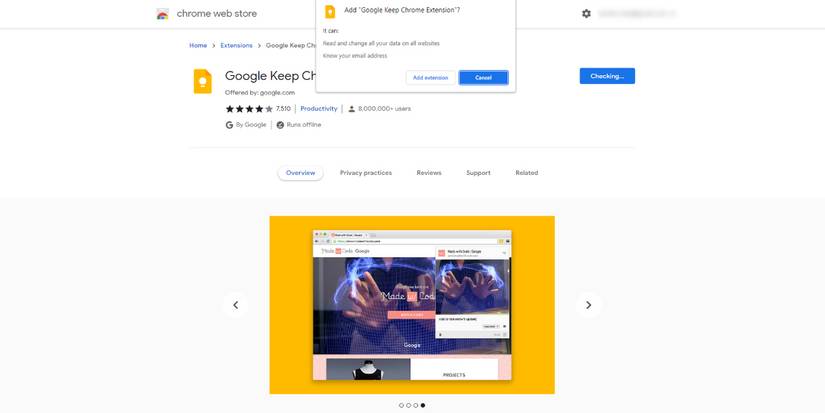
Students constantly come across useful ideas, important reminders, and study material while browsing online. However, many forget these ideas because they don’t write them down immediately.
Google Keep is one of the simplest yet most useful Chrome extensions for students. It allows users to quickly save notes, create to-do lists, and store reminders directly from the browser.
The extension syncs automatically with Google accounts, making notes accessible across phones, tablets, and laptops.
Key Features of Google Keep
- Create quick notes instantly
- Save webpages and links
- Set reminders and tasks
- Color-code notes for organization
- Sync across all devices
Students can use Google Keep for class reminders, assignment deadlines, revision notes, and study checklists.
How Students Benefit from Google Keep
The simplicity of Google Keep is what makes it powerful. Students do not need complicated note-taking systems to stay organized. Quick access to reminders and notes helps reduce mental clutter and improves productivity.
For example, students can save important exam dates, lecture ideas, or useful articles within seconds.
5. Momentum – Create a Productive Study Environment

The Chrome new tab page is often ignored, but it can actually become a productivity tool. Momentum transforms the default Chrome homepage into a clean and motivational dashboard that helps students stay focused on their goals.
Every time students open a new tab, Momentum displays inspiring quotes, daily goals, weather updates, and task reminders. This creates a more mindful and organized browsing experience.
Key Features of Momentum
- Daily focus reminders
- Inspirational quotes
- Personalized dashboard
- To-do lists and productivity tracking
- Beautiful and distraction-free interface
Momentum helps students maintain clarity and direction throughout the day. Instead of opening a distracting homepage, they see their priorities and tasks immediately.
Why Momentum Helps Students
Small reminders can have a huge impact on productivity. Momentum encourages students to focus on one main goal at a time instead of multitasking excessively.
It also creates a calmer digital environment, which reduces stress and improves concentration.
Tips for Using Chrome Extensions Effectively
While Chrome extensions are powerful productivity tools, using too many extensions at once can slow down the browser and create unnecessary clutter. Students should focus only on extensions that truly improve their workflow.
Here are a few tips for better usage:
1. Avoid Installing Too Many Extensions
Using too many browser tools can reduce browser speed and create distractions. Keep only the most useful extensions installed.
2. Use Extensions Consistently
The real benefits come from regular use. Build daily habits around productivity tools for long-term improvement.
3. Organize Your Browser
Keep study-related tabs, bookmarks, and extensions organized for a cleaner workspace.
4. Combine Extensions with Good Study Habits
Extensions are helpful, but they work best alongside proper time management, discipline, and healthy study routines.
How Productivity Tools Improve Learning
Productivity is not only about working faster. It is also about learning more effectively with less stress. When students stay organized and focused, they can understand concepts better and retain information longer.
Chrome extensions reduce unnecessary effort by automating small tasks. This allows students to spend more time on actual learning instead of managing distractions or searching for information.
For example:
- Grammar tools improve writing confidence
- Focus tools increase concentration
- Note-taking apps improve organization
- Research tools simplify information management
Together, these improvements create a smoother and more productive academic experience.
FAQ
Who should use Digital Tools
Top 5 Student Chrome Extensions to Boost Productivity and Learning is built for browser users who want helpful add-ons without slowing down their setup. The main goal is a cleaner browser workflow with fewer risky or unnecessary extensions, so the guide focuses on practical choices instead of broad theory.
Use it when you need one of these outcomes:
- adding one-click help to everyday browser tasks
- reducing repetitive copy, download, or writing work
- testing a workflow before adding more extensions
How to get a better result
- Install only the extension that solves your current task.
- Review permissions before enabling it on important sites.
- Test it on a low-risk page before using it in daily work.
- Remove duplicate extensions so the browser stays fast and predictable.
Start small, check the first output, and only then repeat the workflow with the full file, text, media, or game session. That gives you a quick quality check before you spend more time.
Quality checks before you trust the output
- the extension permissions match the job it claims to do
- reviews and update history look trustworthy
- you can disable or remove it easily if it is not useful
Avoid stacking multiple extensions that do the same job. Too many add-ons can slow browsing, add confusing buttons, and increase permission risk.
Continue your workflow
If you want to try the workflow now, open the related AltFTool tool area. For more reading, continue through the Digital Tools archive or the AltFTool extension guides.
This creates a cleaner path from explanation to action: read the guide, test the tool, compare the output, and move into the next related AltFTool resource only when it helps the task.
Reader questions
Quick answers
What is Top 5 Student Chrome Extensions to Boost Productivity and Learning about?
Students today spend a huge part of their academic life online. From attending virtual classes and researching assignments to writing essays and preparing prese
When should I use Digital Tools?
Use Digital Tools when you need adding one-click help to everyday browser tasks or reducing repetitive copy, download, or writing work. It is best for a cleaner browser workflow with fewer risky or unnecessary extensions.
How do I get better results from Digital Tools?
Start with a small sample, then check that the extension permissions match the job it claims to do and reviews and update history look trustworthy. Review the output before using it in a final workflow.
Where can I find more Digital Tools guides?
Use the AltFTool blog archive, AltFTool extension guides, and related links on this page to explore more Digital Tools tutorials, tool workflows, and practical recommendations.
Sources and review notes
References used to check facts, freshness, and reader-safe recommendations in this guide.
Reviewed against AltFTool editorial guidance, related site archives, and linked tool pages for freshness and reader usefulness.
- 1AltFTool Digital Tools archive
AltFTool
- 2AltFTool extension guides
AltFTool
- 3AltFTool related tools area
AltFTool
Discussion
0 comments
No comments yet
Discussion will appear here once it loads.