
In a world where almost everything is online—banking, social media, shopping, and even work—password security has never been more important. Yet, many of us still rely on weak, predictable passwords that can easily be cracked by hackers.
I was one of those people.
Out of curiosity (and a bit of concern), I decided to test a password generator to see if it really makes a difference. What I discovered completely changed the way I think about online security.
Why I Decided to Test a Password Generator
For years, I followed the same habits most people do without even realizing the risk. I reused passwords across multiple platforms, chose combinations that were easy to remember, and avoided complex characters because they felt inconvenient.
At the time, it seemed harmless. After all, remembering dozens of complicated passwords is not easy.
However, after hearing about increasing data breaches and hacking incidents, I began to question how secure my accounts actually were. That’s when I decided to try a password generator—a tool specifically designed to create strong, random, and secure passwords.
Understanding How a Password Generator Works
Before diving into the results, it’s important to understand what a password generator actually does.
A password generator creates random combinations of:
- Uppercase and lowercase letters
- Numbers
- Special characters (like @, #, $, %, etc.)
These combinations are designed to be unpredictable and resistant to common hacking techniques like brute-force attacks or dictionary attacks.
Unlike human-created passwords, which often follow patterns, generated passwords are entirely random—making them significantly more secure.
The Testing Process
To get a clear idea of how effective password generators are, I ran a simple test.
I generated multiple passwords with different configurations:
- Lengths of 8, 12, and 16 characters
- Inclusion of symbols and numbers
- Fully randomized combinations
I then compared these passwords to the kind I usually create on my own.
The difference was immediately noticeable.
The Results That Surprised Me
1. Unmatched Complexity
The first thing I noticed was how complex the generated passwords were. Instead of simple or predictable patterns, the passwords looked something like this:
- T#9kL@2qW!8x
- pR$5vX7!bM@1
There was no logical pattern, no recognizable word, and no easy way to guess them. This level of randomness is nearly impossible to achieve manually.
2. Drastically Increased Security
One of the biggest takeaways from this test was how much stronger these passwords are compared to traditional ones.
Simple passwords like “password123” or “name@2024” can be cracked in seconds using automated tools. On the other hand, a 16-character random password with symbols and numbers can take years—or even centuries—to crack.
This was a wake-up call. It made me realize that convenience often comes at the cost of security.
3. No Repetition or Patterns
Humans tend to reuse patterns, even when trying to be creative. For example, we might change only a few characters or add numbers at the end of a familiar word.
Password generators eliminate this problem completely. Every password created is unique, with no repetition or predictable structure.
This ensures that even if one account is compromised, others remain secure.
4. Removal of Human Error
One of the biggest advantages of using a password generator is that it removes human bias.
We naturally choose passwords that are meaningful to us—names, birthdays, or favorite words. Unfortunately, these are also the first things hackers try.
By generating completely random passwords, this tool removes any personal connection, making it significantly harder for attackers to guess or crack them.
Are There Any Downsides?

While password generators offer strong security benefits, they are not without a few challenges.
1. Difficult to Remember
Complex passwords are not easy to memorize. A random string of characters doesn’t stick in your mind like a familiar word or phrase.
2. Dependency on Password Managers
To manage multiple strong passwords, you’ll likely need a password manager. This adds another layer of responsibility, although it greatly improves convenience.
3. Slight Inconvenience
Typing long, complex passwords manually can be time-consuming, especially on mobile devices.
However, when compared to the risk of losing access to accounts or facing a security breach, these downsides feel minor.
My Final Verdict
After testing a password generator, I can confidently say that it is one of the simplest and most effective ways to improve online security.
What started as a small experiment turned into a major realization: most of us underestimate how vulnerable our accounts really are.
Switching to generated passwords is not just a smart move—it’s a necessary one in today’s digital environment.
Tips for Creating and Managing Strong Passwords
If you’re planning to improve your password security, here are some practical tips:
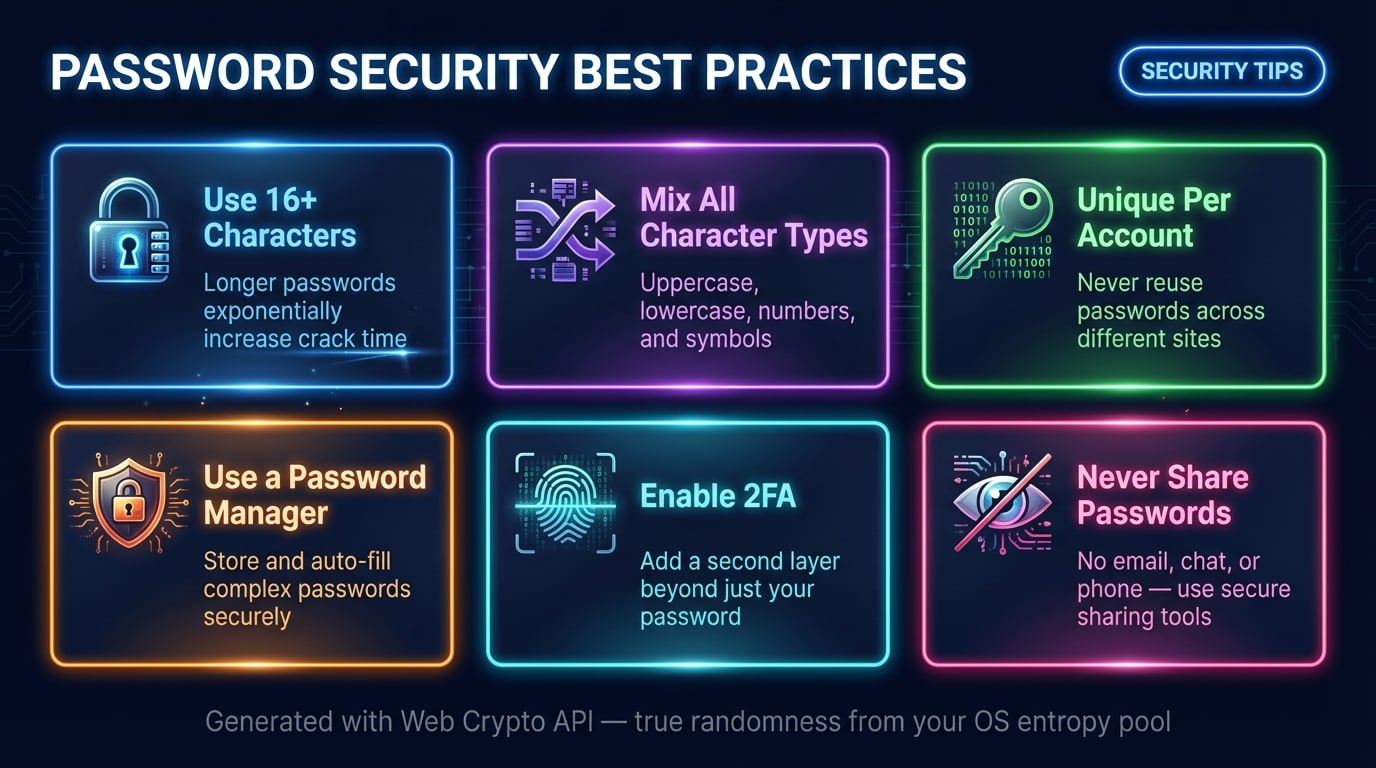
- Use passwords that are at least 12–16 characters long
- Always include a mix of letters, numbers, and symbols
- Avoid using personal information like names or birthdates
- Never reuse the same password across multiple accounts
- Use a reliable password manager to store your credentials
- Enable two-factor authentication (2FA) wherever possible
These steps can significantly reduce your risk of being hacked.
Conclusion
Testing a password generator was more eye-opening than I expected. It highlighted how weak and predictable most human-created passwords are, and how easily they can be compromised.
On the other hand, generated passwords provide a level of security that is extremely difficult to break.
In a time where data breaches are becoming increasingly common, taking small steps like using a password generator can make a huge difference.
If you haven’t already made the switch, now is the perfect time to start. Your digital safety depends on it.
Who should use Digital Tools
I Tested a Password Generator… The Results Shocked Me is built for readers who want a faster way to finish everyday web tasks. The main goal is shorter workflows, clearer outputs, and reusable tool habits, so the guide focuses on practical choices instead of broad theory.
Use it when you need one of these outcomes:
- testing a task before choosing a heavier app
- saving time on a repeated browser workflow
- combining a guide with a related AltFTool utility
How to get a better result
- Read the core use case and decide what output you need.
- Open the related AltFTool utility and test it with a small sample.
- Review the result, adjust settings, and repeat only if needed.
- Continue with related tools or guides for the next step in the workflow.
Start small, check the first output, and only then repeat the workflow with the full file, text, media, or game session. That gives you a quick quality check before you spend more time.
Quality checks before you trust the output
- the input is clean before running the tool
- the output matches the format you need
- private details are removed before sharing or downloading
Do not overcomplicate a simple task. Start with the smallest sample that proves the workflow, then scale up once the output looks right.
Continue your workflow
If you want to try the workflow now, open the related AltFTool tool area. For more reading, continue through the Digital Tools archive or the AltFTool tools directory.
This creates a cleaner path from explanation to action: read the guide, test the tool, compare the output, and move into the next related AltFTool resource only when it helps the task.
Reader questions
Quick answers
What is I Tested a Password Generator… The Results Shocked Me about?
In a world where almost everything is online—banking, social media, shopping, and even work—password security has never been more important. Yet, many of us sti
When should I use Digital Tools?
Use Digital Tools when you need testing a task before choosing a heavier app or saving time on a repeated browser workflow. It is best for shorter workflows, clearer outputs, and reusable tool habits.
How do I get better results from Digital Tools?
Start with a small sample, then check that the input is clean before running the tool and the output matches the format you need. Review the output before using it in a final workflow.
Where can I find more Digital Tools guides?
Use the AltFTool blog archive, AltFTool tools directory, and related links on this page to explore more Digital Tools tutorials, tool workflows, and practical recommendations.
Sources and review notes
References used to check facts, freshness, and reader-safe recommendations in this guide.
Reviewed against AltFTool editorial guidance, related site archives, and linked tool pages for freshness and reader usefulness.
- 1AltFTool Digital Tools archive
AltFTool
- 2AltFTool tools directory
AltFTool
Discussion
0 comments
No comments yet
Discussion will appear here once it loads.