
Design is everywhere—from the apps you use daily to the websites you browse and even the packaging of your favorite products. Whether you're a beginner exploring creativity or someone looking to sharpen your skills, learning to design like a pro is a journey that combines creativity, strategy, and practice.
The best part? You don’t need to be naturally “talented” to become a great designer. With the right tools, mindset, and guidance, anyone can learn design and gradually master it. In this guide, we’ll walk through everything from basic principles to advanced techniques that can help you elevate your design skills step by step.
Understanding the Basics of Design
Before jumping into tools and techniques, it’s important to understand what design really is. At its core, design is about solving problems visually. It’s not just about making things look good—it’s about making them functional, clear, and engaging.
Key Elements of Design
Every design is built on a few essential elements:
- "ef6bda8a11b11314793e73d703dd2b9ac">Typography: Communicates tone and readability
- Layout: Organizes content effectively
- Images and graphics: Add visual interest and meaning
Understanding how these elements work together is the foundation of good design.
Principles Every Beginner Should Know
Once you understand the elements, the next step is learning how to use them effectively.
1. Balance
Balance ensures your design feels stable. It can be symmetrical (equal on both sides) or asymmetrical (different but visually balanced).
2. Contrast
Contrast helps important elements stand out. This can be achieved using colors, sizes, or shapes.
3. Alignment
Everything in your design should feel connected. Proper alignment creates a clean and professional look.
4. Hierarchy
Hierarchy guides the viewer’s eye. It tells them what to look at first, second, and third.
5. White Space
Also known as negative space, this helps avoid clutter and improves readability.
Mastering these principles will instantly improve your designs—even if you’re just starting out.
Choosing the Right Tools
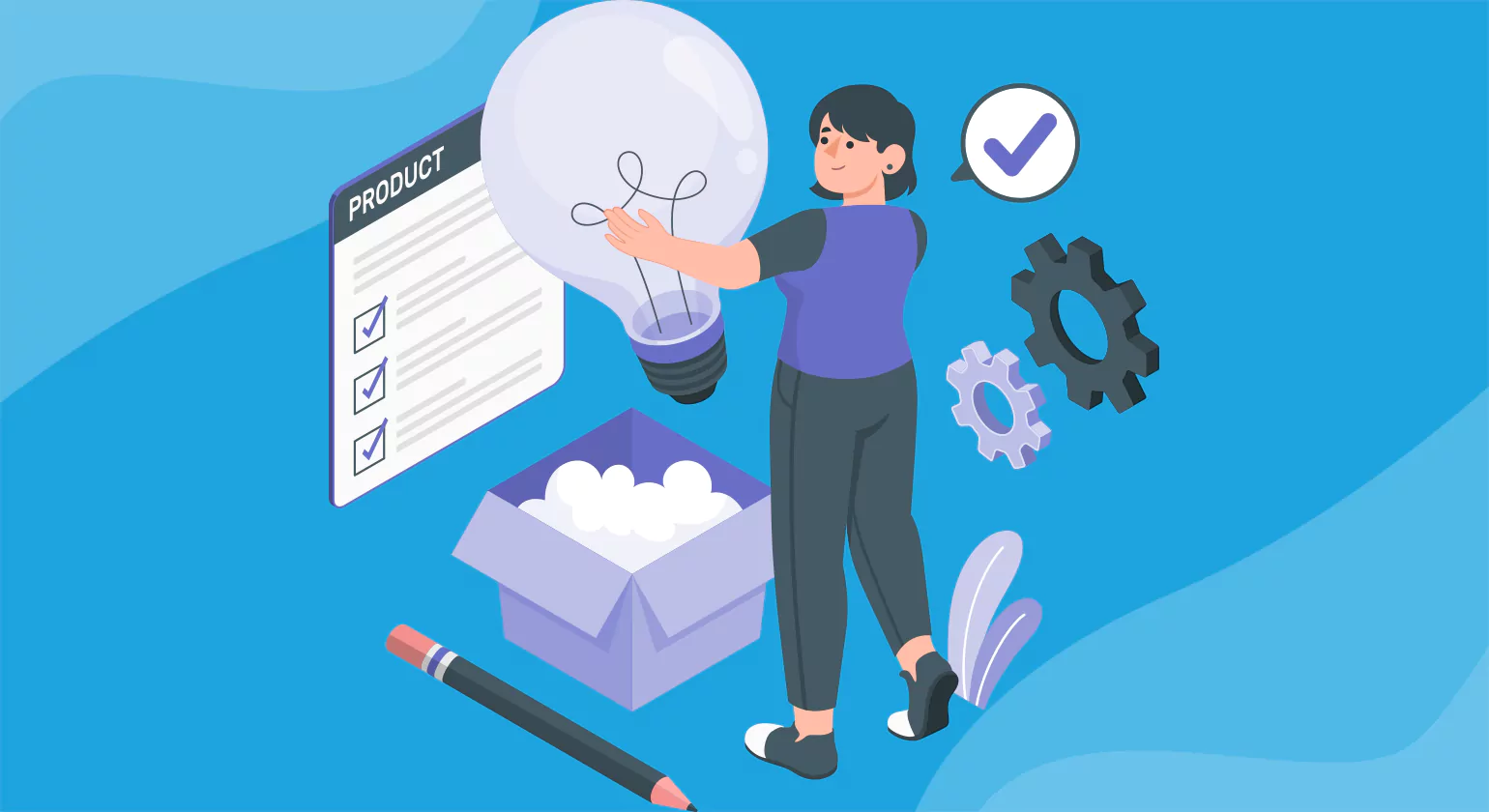
Today, there are many design tools available for beginners and professionals alike.
- Canva – Great for beginners, easy drag-and-drop features
- Adobe Photoshop – Ideal for photo editing and advanced design
- Adobe Illustrator – Perfect for logos and illustrations
- Figma – Best for UI/UX and team projects
Start simple. As your skills grow, you can explore more advanced tools.
Building Strong Design Skills
Practice Consistently
Design is a skill you improve by doing. Try creating posters, social media graphics, or simple website layouts regularly.
Learn from Others
Observe designs around you—websites, ads, apps. Ask yourself what works and what doesn’t.
Follow Trends (But Don’t Depend on Them)
Staying updated with trends helps your designs feel modern, but don’t rely on them too much. Focus on timeless design principles.
Moving from Beginner to Intermediate
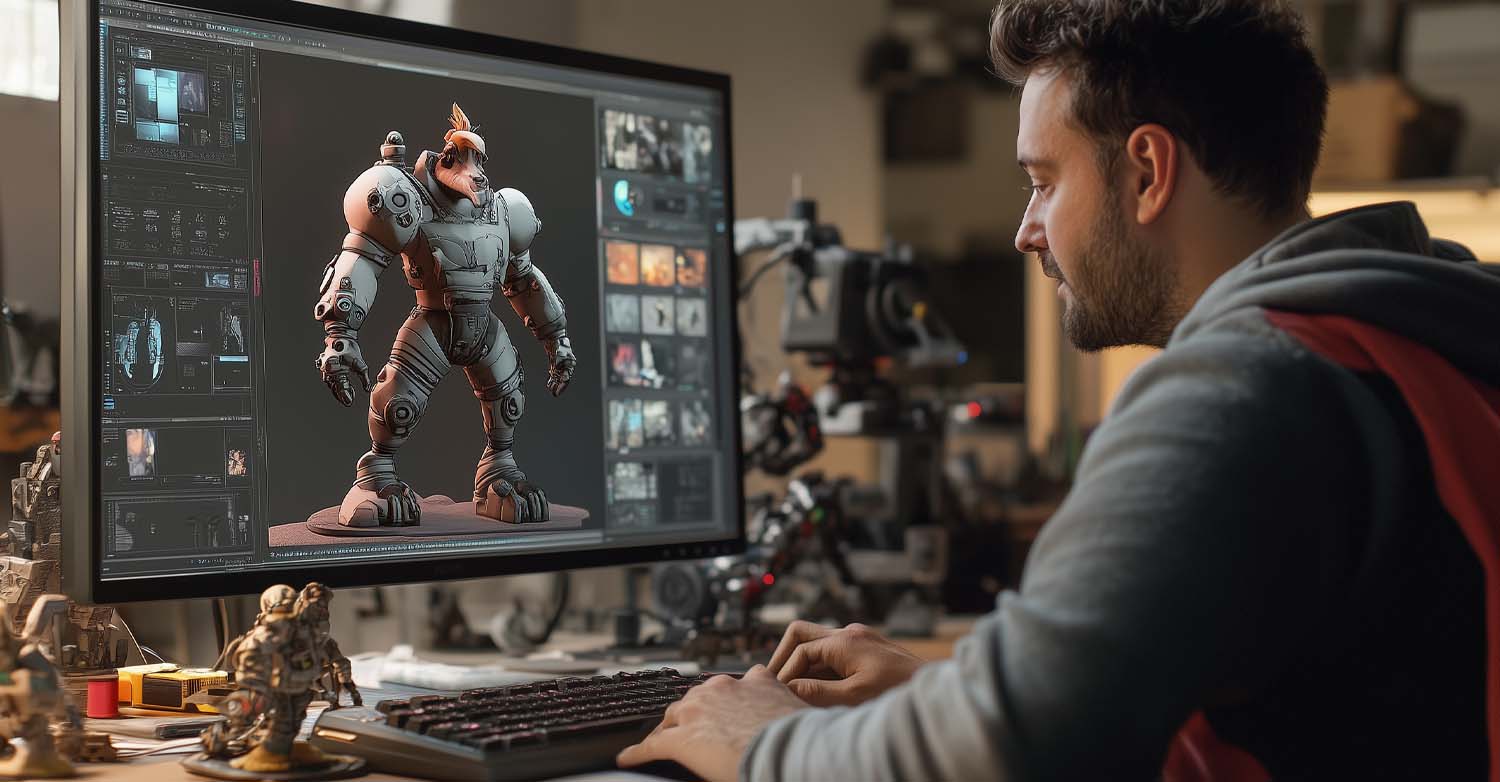
Once you’re comfortable with the basics, it’s time to level up.
Understand Color Theory
Learn how colors work together. Complementary and analogous color schemes can make your designs more appealing.
Improve Typography Skills
Don’t just pick random fonts. Learn how to pair fonts effectively and maintain readability.
Work on Real Projects
Create mock designs for brands, redesign existing websites, or work on freelance projects. Real-world practice builds confidence.
Advanced Design Techniques
When you reach an advanced level, design becomes more strategic.
Focus on User Experience (UX)
Good design is not just about visuals—it’s about how users interact with your design. Make sure your designs are easy to navigate and understand.
Use Grids and Systems
Grids help maintain consistency and alignment across your design.
Develop Your Own Style
At this stage, you’ll start creating designs that reflect your personal style. This helps you stand out as a designer.
Common Mistakes to Avoid
Even experienced designers make mistakes. Here are a few to watch out for:
- Overcrowding your design
- Using too many fonts or colors
- Ignoring alignment and spacing
- Copying designs without understanding them
Keeping things simple and intentional is often the best approach.
Tips to Think Like a Professional Designer
- Always design with a purpose
- Keep the user in mind
- Focus on clarity over complexity
- Be open to feedback and improvements
- Never stop learning
Professional designers are not just creative—they are problem solvers.
FAQs
1. Can I learn design without any experience?
Yes, absolutely. Many designers start from scratch. With practice and the right resources, anyone can learn design.
2. Which design tool is best for beginners?
Tools like Canva are beginner-friendly, while Photoshop and Illustrator are better for advanced users.
3. How long does it take to become a good designer?
It depends on your consistency and practice. With regular effort, you can see improvement within a few months.
4. Do I need a degree to become a designer?
No, a degree is not mandatory. Many successful designers are self-taught and build skills through practice.
5. How can I improve my design skills quickly?
Practice daily, study good designs, take feedback, and work on real projects.
6. What is the most important rule in design?
Clarity. A good design should communicate its message clearly and effectively.
Who should use Digital Tools
Complete Guide to Designing Like a Pro for Beginners is built for readers who want a faster way to finish everyday web tasks. The main goal is shorter workflows, clearer outputs, and reusable tool habits, so the guide focuses on practical choices instead of broad theory.
Use it when you need one of these outcomes:
- testing a task before choosing a heavier app
- saving time on a repeated browser workflow
- combining a guide with a related AltFTool utility
How to get a better result
- Read the core use case and decide what output you need.
- Open the related AltFTool utility and test it with a small sample.
- Review the result, adjust settings, and repeat only if needed.
- Continue with related tools or guides for the next step in the workflow.
Start small, check the first output, and only then repeat the workflow with the full file, text, media, or game session. That gives you a quick quality check before you spend more time.
Quality checks before you trust the output
- the input is clean before running the tool
- the output matches the format you need
- private details are removed before sharing or downloading
Do not overcomplicate a simple task. Start with the smallest sample that proves the workflow, then scale up once the output looks right.
Continue your workflow
If you want to try the workflow now, open the related AltFTool tool area. For more reading, continue through the Digital Tools archive or the AltFTool tools directory.
This creates a cleaner path from explanation to action: read the guide, test the tool, compare the output, and move into the next related AltFTool resource only when it helps the task.
Reader questions
Quick answers
What is Complete Guide to Designing Like a Pro for Beginners about?
Design is everywhere—from the apps you use daily to the websites you browse and even the packaging of your favorite products. Whether you're a beginner explorin
When should I use Digital Tools?
Use Digital Tools when you need testing a task before choosing a heavier app or saving time on a repeated browser workflow. It is best for shorter workflows, clearer outputs, and reusable tool habits.
How do I get better results from Digital Tools?
Start with a small sample, then check that the input is clean before running the tool and the output matches the format you need. Review the output before using it in a final workflow.
Where can I find more Digital Tools guides?
Use the AltFTool blog archive, AltFTool tools directory, and related links on this page to explore more Digital Tools tutorials, tool workflows, and practical recommendations.
Sources and review notes
References used to check facts, freshness, and reader-safe recommendations in this guide.
Reviewed against AltFTool editorial guidance, related site archives, and linked tool pages for freshness and reader usefulness.
- 1AltFTool Digital Tools archive
AltFTool
- 2AltFTool tools directory
AltFTool
Discussion
0 comments
No comments yet
Discussion will appear here once it loads.